Set Up Another Project
This guide covers everything you need to configure a Quratic project for meaningful, ongoing brand tracking.
What you’ll set up
Section titled “What you’ll set up”- A project for your brand
- Prompts written for your target users and markets
- Active markets that reflect where you operate
- AI models relevant to your audience
- Competitors to benchmark against
Step 1 — Create a project
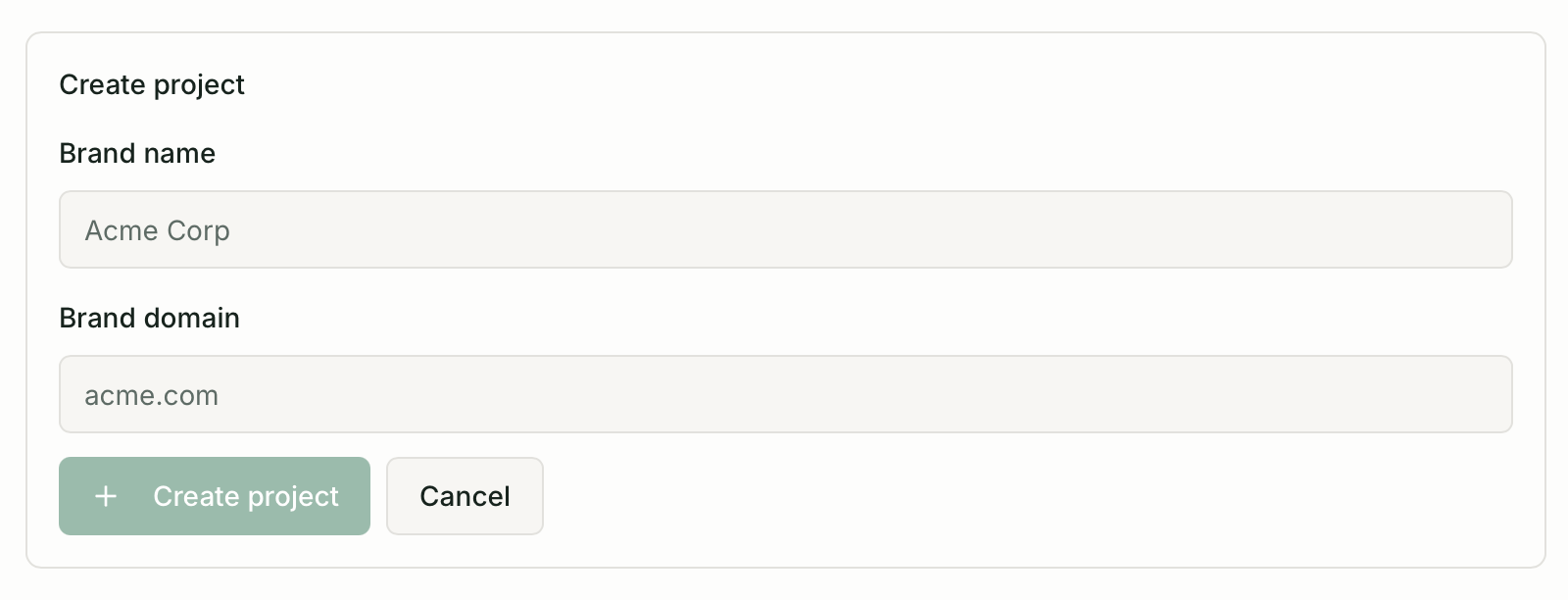
Section titled “Step 1 — Create a project”Go to Settings → Organization (owners only) Projects and click New project, then fill in:
| Field | Notes |
|---|---|
| Brand name | The exact name used in AI responses. Check how AI platforms currently refer to you. |
| Brand domain | Your primary domain without https:// (e.g. acme.com). Used for citation detection. |
Step 2 — Write prompts
Section titled “Step 2 — Write prompts”Prompts are the questions Quratic sends to AI platforms on your behalf. Quality here is the single biggest lever on data usefulness.
Prompt strategy
Section titled “Prompt strategy”Think about the types of queries your potential customers actually make:
- Awareness queries: “What tools help marketing teams track AI search visibility?”
- Category queries: “Best [your product category] in [country]?”
- Problem-led queries: “How do I find out if my brand appears in ChatGPT?”
- Competitor comparison: “[Your brand] vs [Competitor]“
One prompt per market
Section titled “One prompt per market”Each prompt is assigned to one market. If you want to track the same question across multiple markets, create one prompt per market. Use the Copy to market action on any prompt to speed this up.
Language
Section titled “Language”Write the prompt in the language the target user would use. If you want to simulate a Japanese user who searches in Japanese, write the prompt in Japanese. There is no automatic translation.
What is the best AI analytics tool for marketing teams in Singapore?Market: SingaporeCategory: awarenessマーケティングチームにおすすめのAI分析ツールは?Market: JapanCategory: awareness마케팅 팀을 위한 최고의 AI 분석 도구는 무엇인가요?Market: South KoreaCategory: awareness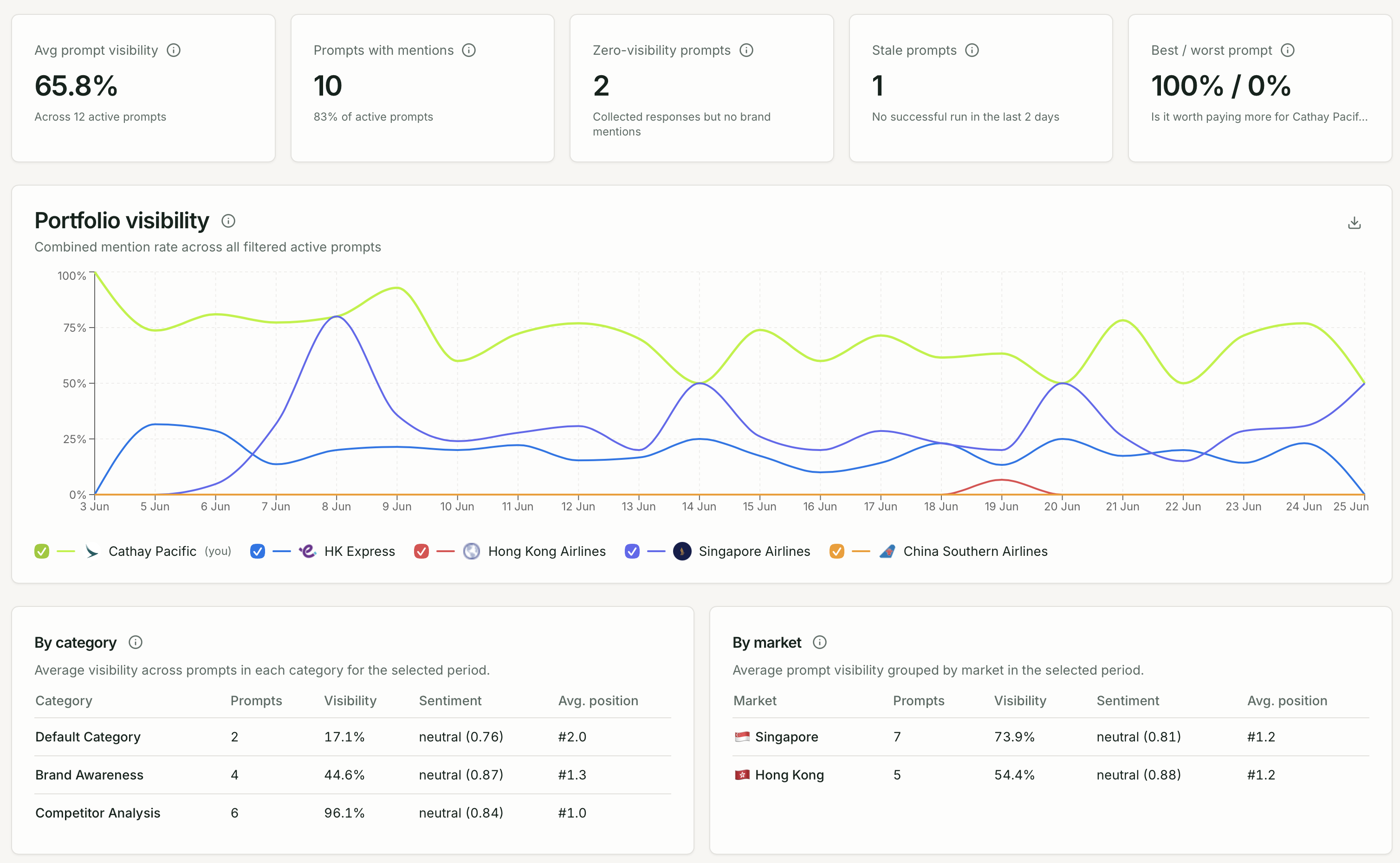
Step 3 — Configure Brand Settings
Section titled “Step 3 — Configure Brand Settings”Active markets
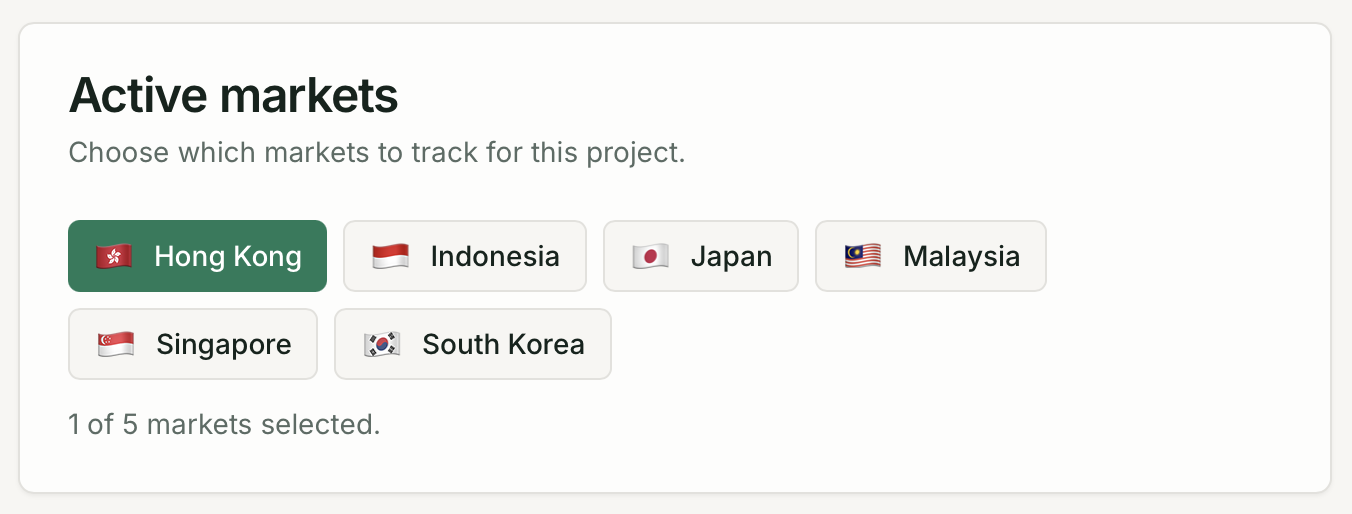
Section titled “Active markets”In Brand Settings → Markets, choose which regions this project tracks. Your plan limits how many markets you can enable (see Plans & Limits). New projects default to Singapore.
Only active markets appear in prompt selectors and dashboard filters. See Account & Settings for details.
AI models
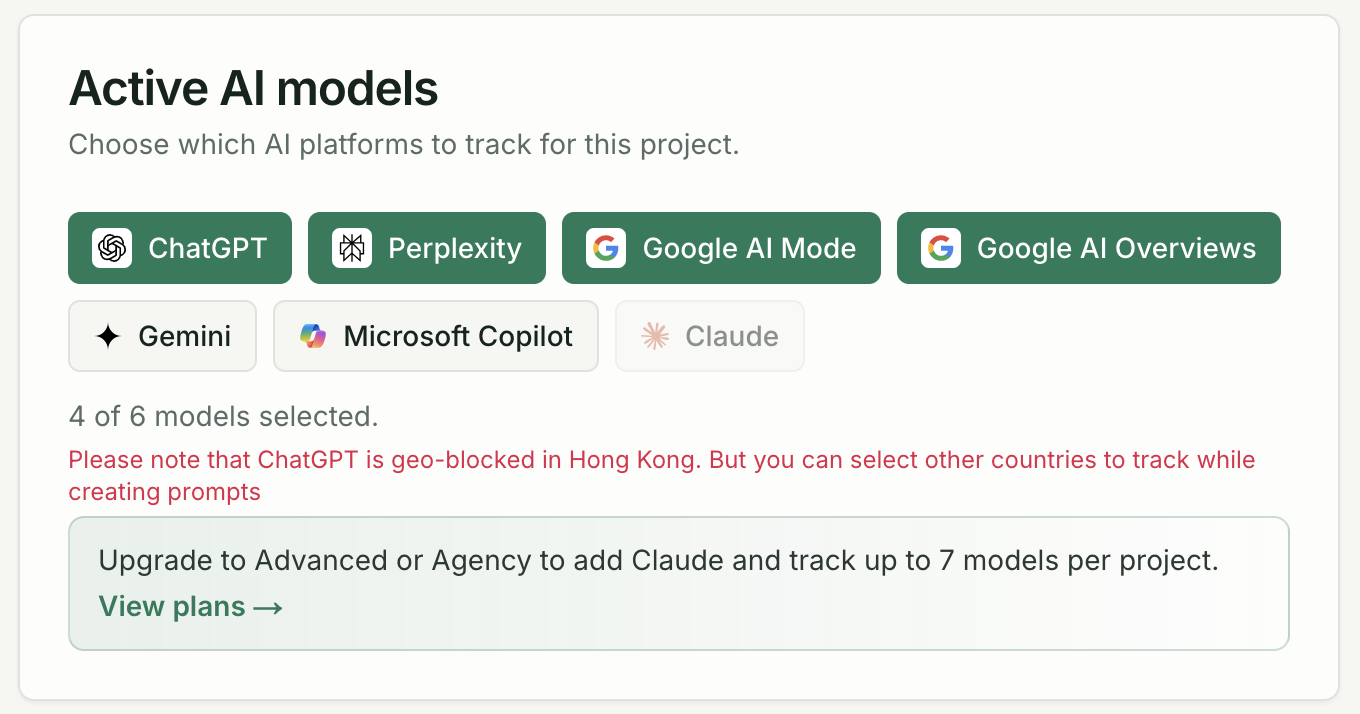
Section titled “AI models”Each active model on a prompt uses one check per run. Your plan’s monthly check allowance determines how many model/prompt combinations you can run.
Select the platforms most used by your target audience in Brand Settings → Models. See Supported AI Models for the full list and plan availability.
Step 4 — Add competitors
Section titled “Step 4 — Add competitors”Go to Competitors in the sidebar and add the brand names you want to track alongside yours. Quratic scans every AI response for competitor mentions, so you can see share of voice in context.
Step 5 — Verify your setup
Section titled “Step 5 — Verify your setup”Use Prompts → [your prompt] to see recent results once the first scheduled check has run. Confirm:
- Your brand domain is recognised in citations
- Competitor names match exactly how they appear in AI responses
If your brand is not detected, check the raw response in Responses and update your brand name in Brand Settings → Brand if needed.