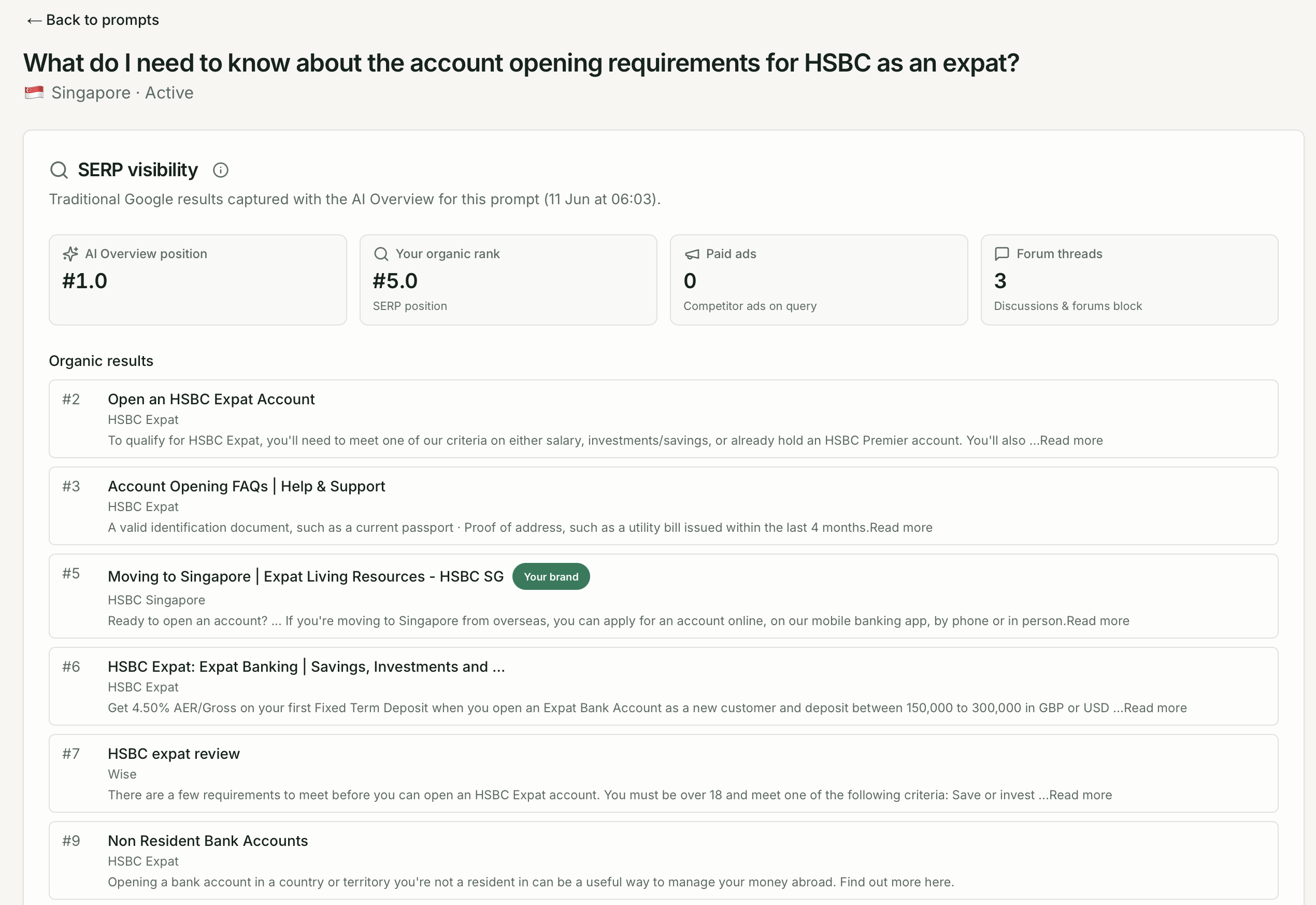
Prompts
Prompts are the heart of Quratic — every metric in your dashboard flows from the questions you ask AI platforms. This guide covers the full prompt management workflow.
The Prompts page
Section titled “The Prompts page”Go to Prompts under AI Visibility in the sidebar to see all your prompts AI portfolio visibility.
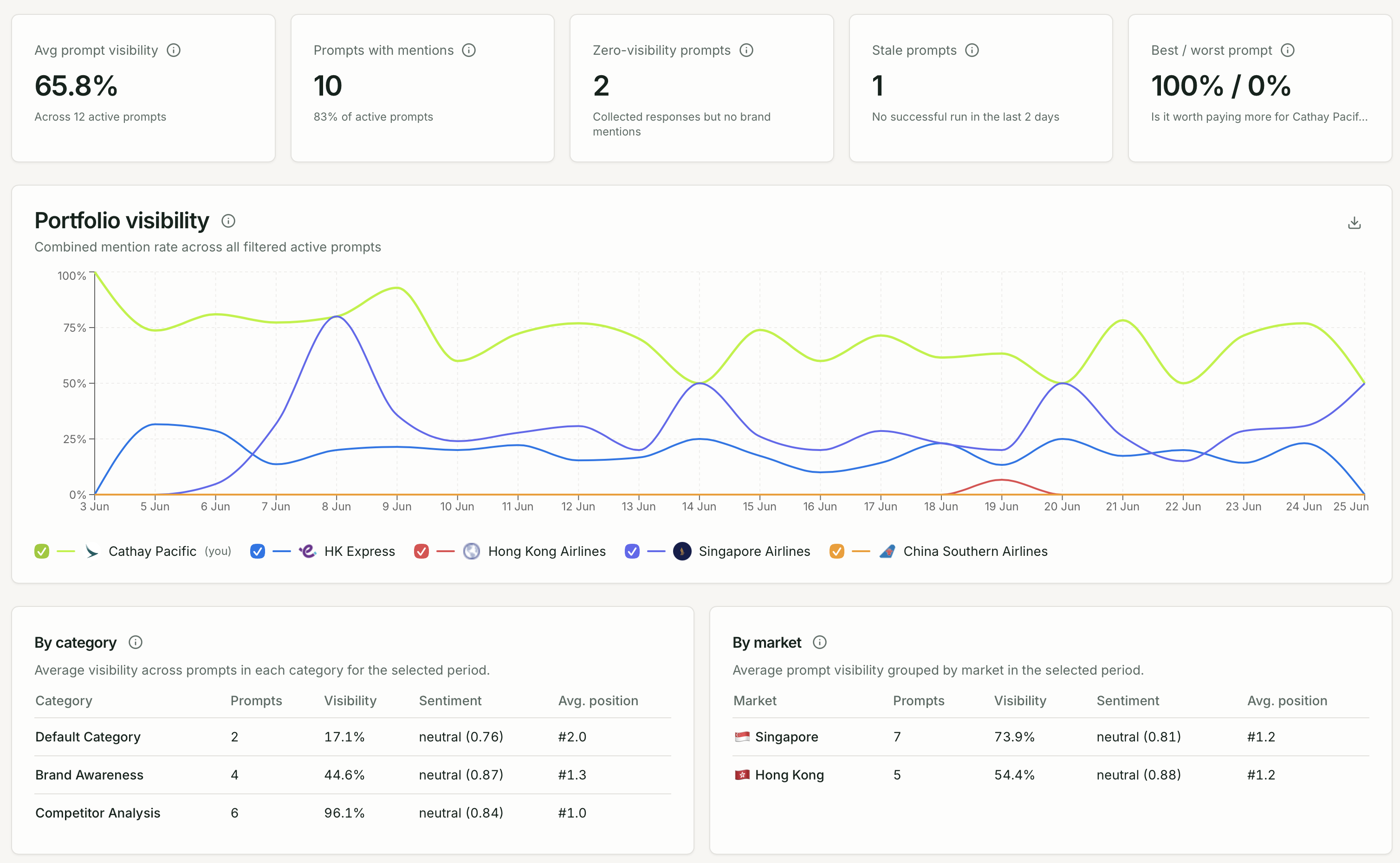
The page contains:
- Avg prompt visibility — Average mention rate across active prompts in this period.
- Zero-visibility prompts — Active prompts that collected responses but never mentioned your brand.
- Portfolio visibility — Combined mention rate across all active prompts in the selected filters — your brand vs tracked competitors.
- Prompt visibility — Trend showing how often your brand and competitors are mentioned in collected AI responses. and Many More
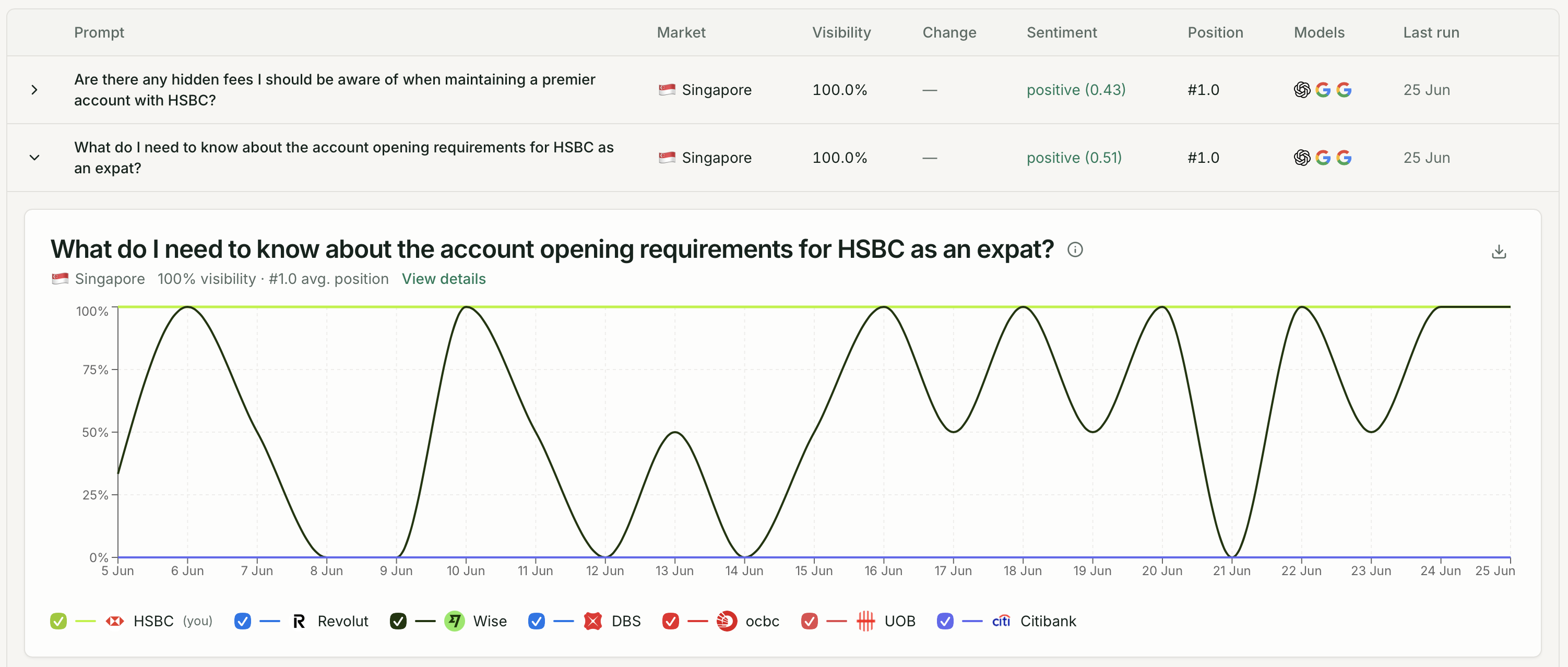
The header shows active prompt usage against your plan’s limit (e.g. 12 / 20 active).
Adding a prompt
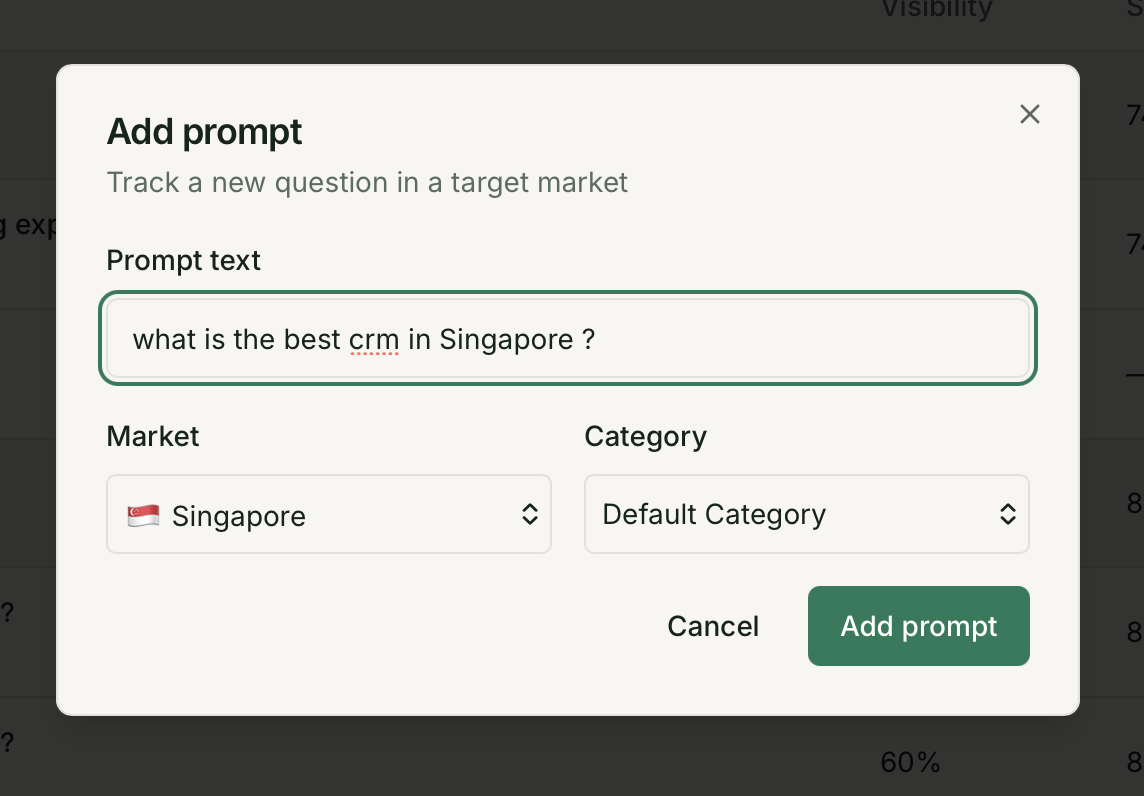
Section titled “Adding a prompt”- Click Manage prompts in the same section or go to Brand Settings -> Prompt and Add prompt
- Enter the prompt text (the question Quratic will submit to AI platforms)
- Select a market — where the check runs from (must be one of your active markets)
- Assign a category for your own organisation (e.g.
Awareness,Purchase Intent) - Click Save
Categories
Section titled “Categories”Categories are labels for your own organisation. They do not affect check behaviour. Use them to group prompts by funnel stage, product line, or topic.
Creating a category
Section titled “Creating a category”- Click Add category in the Prompts header
- Type a custom name, or choose from the suggested topic chips
- Save
Deleting a category
Section titled “Deleting a category”Click the category menu and select Delete category. Prompts in the category are moved to the default uncategorised group.
Organising prompts
Section titled “Organising prompts”- Move to category — available in the row action menu on any prompt
- Reorder categories — drag category headers (coming soon)
Deactivating and reactivating prompts
Section titled “Deactivating and reactivating prompts”Deactivated prompts stop running on schedule and stop consuming checks.
- In the prompt row, open the action menu
- Select Deactivate
To reactivate, go to the Inactive tab and select Reactivate.
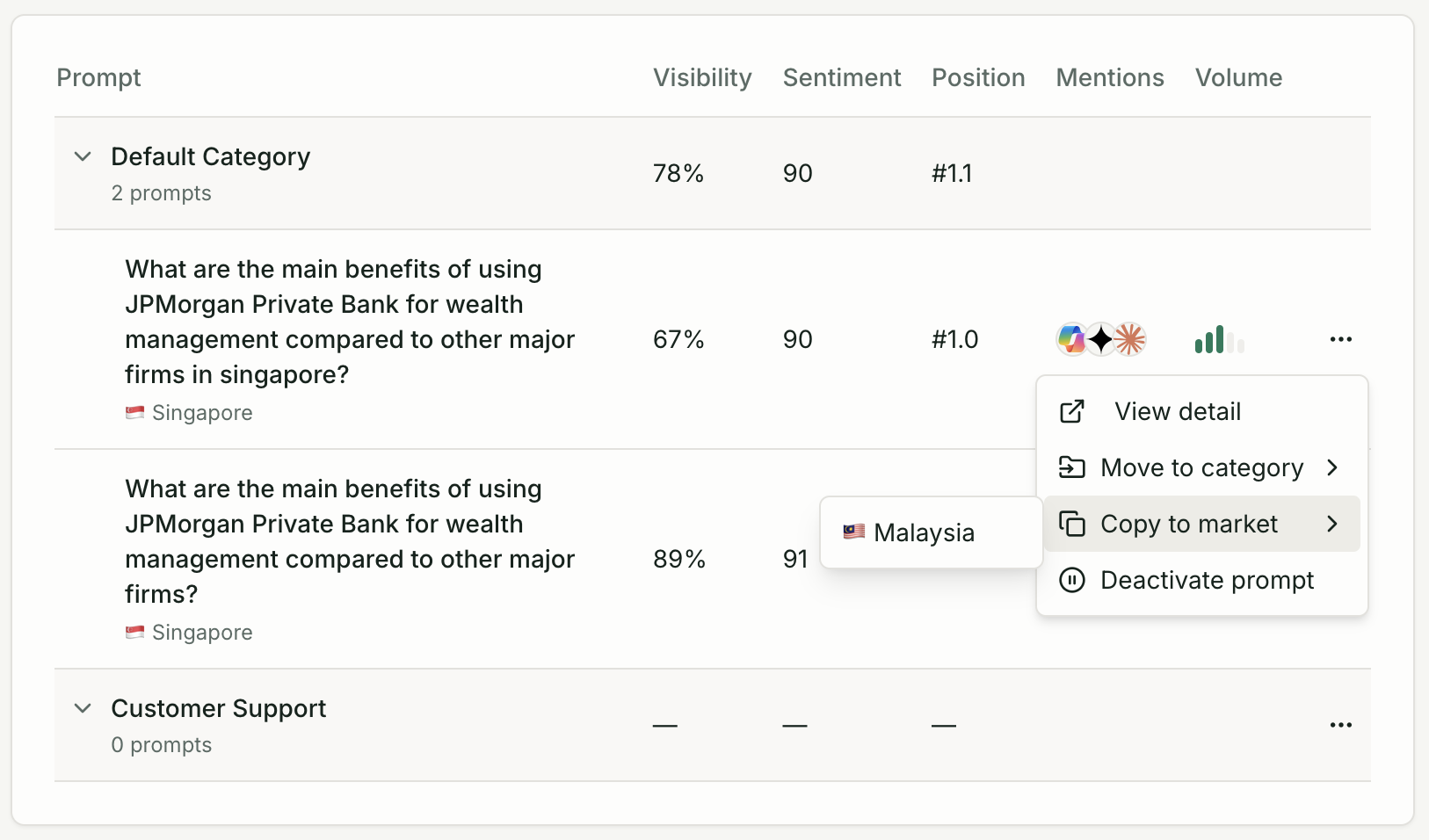
Copying a prompt to another market
Section titled “Copying a prompt to another market”If you want the same question tracked in multiple markets:
- Open the prompt’s action menu
- Select Copy to market
- Choose the target market
- Edit the prompt text if you need to adjust the language
AI-suggested prompts
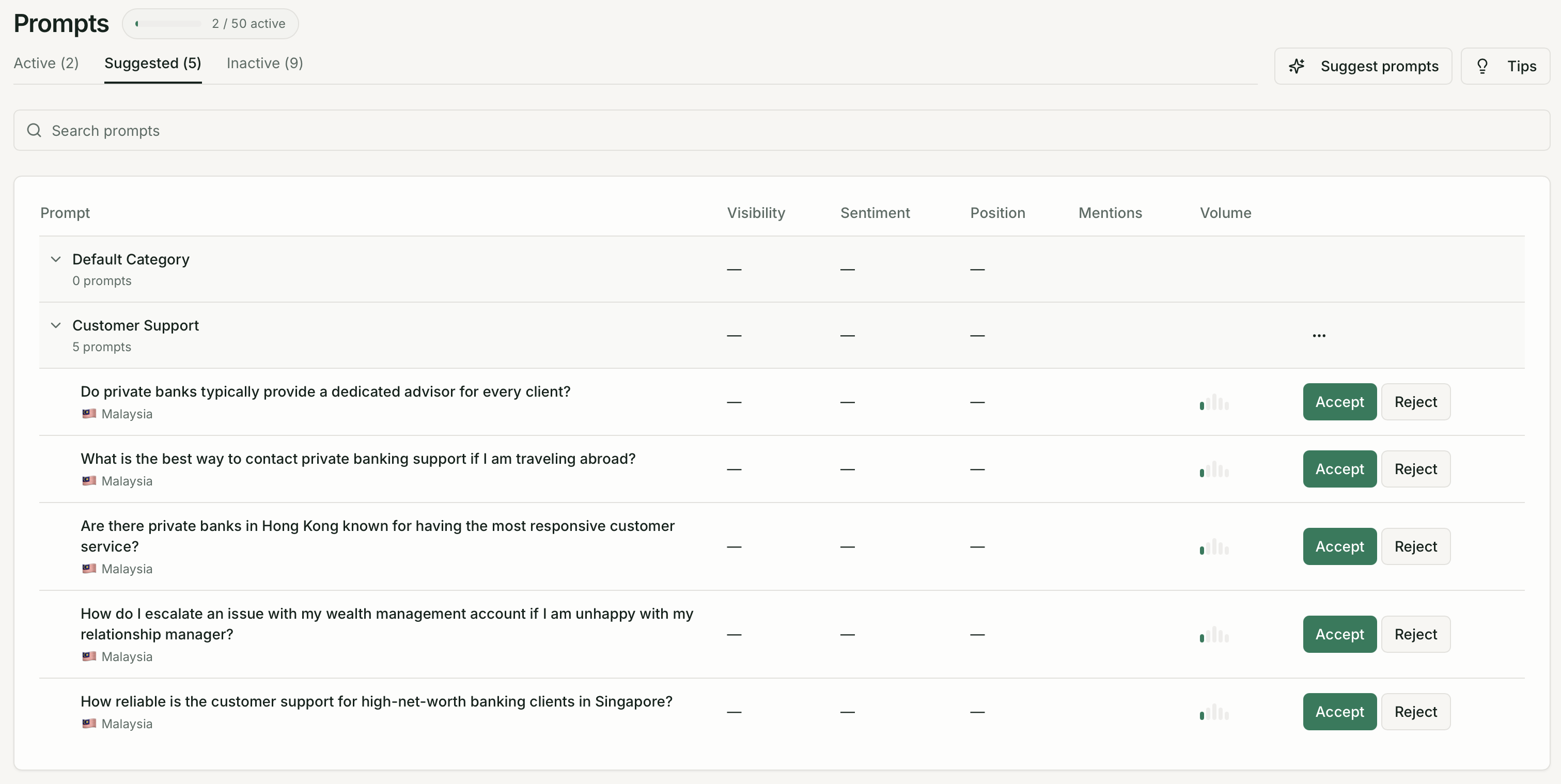
Section titled “AI-suggested prompts”Quratic can generate prompt suggestions based on your brand and target market.
- Click Suggest prompts
- Choose a category, market, and language
- Quratic returns up to 5 suggestions
Review them in the Suggested tab:
- Click Accept to add a suggestion to your active prompts
- Click Reject to dismiss it
You can also add prompts from the related questions shown on any prompt detail page — these are follow-up questions the AI generated alongside its response.
Prompt detail page
Section titled “Prompt detail page”Click any active prompt row to open its detail page. Here you can see:
- The prompt’s market and status
- Recent results — the last 10 check results: date, model, mentioned (yes/no), position, sentiment
- Related questions — AI-generated follow-ups from recent responses, with an Add as suggested prompt button