Track a Brand Across AI Models
This guide explains how to set up and maintain tracking for a brand across multiple AI models.
What “tracking” means
Section titled “What “tracking” means”Every time a prompt runs against an AI model, Quratic:
- Opens a real browser session from a residential IP in your target country
- Submits your prompt text to the AI platform
- Records the full response
- Detects whether your brand name appears, and where in the response
- Detects any links to your domain (citations)
- Stores the result and updates your dashboard
Tracking is passive — Quratic observes what AI platforms say naturally; it does not influence or modify responses.
Choosing which models to track
Section titled “Choosing which models to track”Different AI platforms have different audiences in different markets. As a starting point:
| Market | High-priority models |
|---|---|
| Singapore, Hong Kong | ChatGPT, Perplexity, Gemini, Google AI Overview |
| Japan | ChatGPT, Gemini, Microsoft Copilot, Google AI Overview |
| South Korea | ChatGPT, Perplexity, Gemini |
| Malaysia, Indonesia | ChatGPT, Gemini, Perplexity, Google AI Overview |
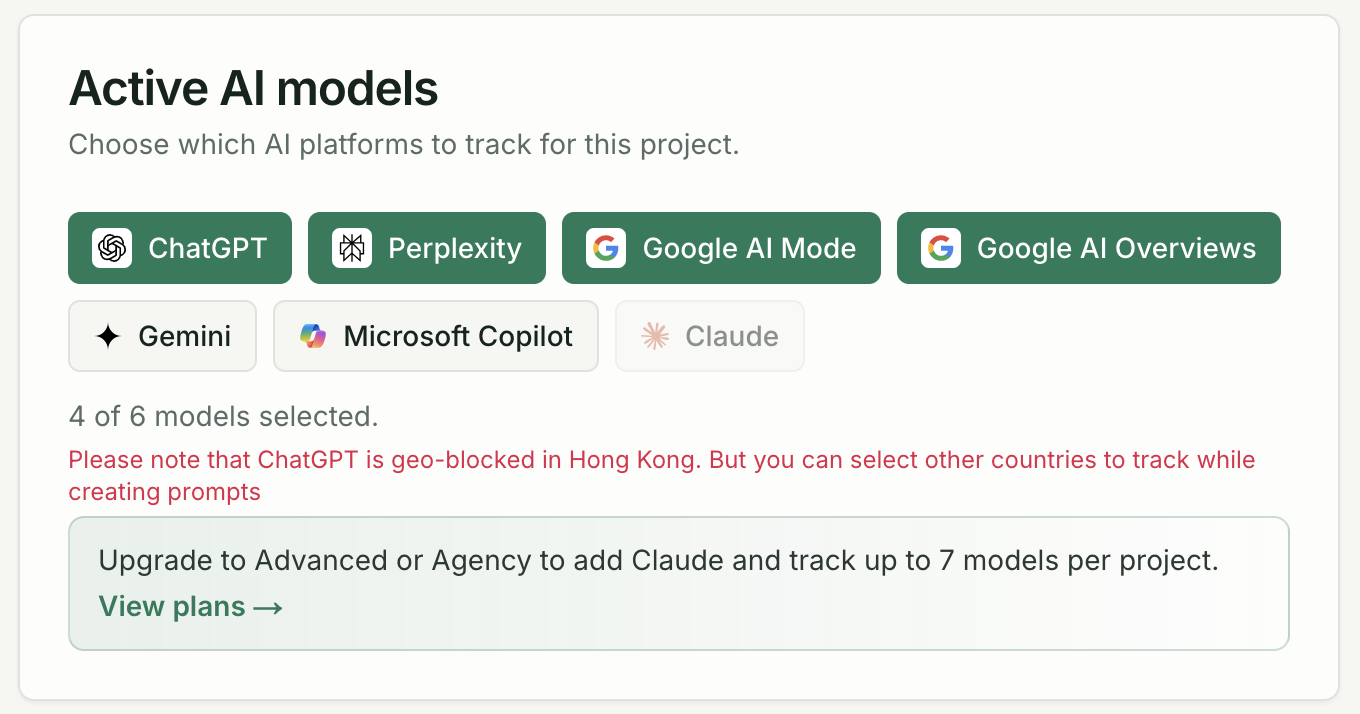
Enable only the models relevant to your market to stay within your plan’s check budget. You can always add models later.
Brand name and aliases
Section titled “Brand name and aliases”Quratic matches your brand name in AI response text when calculating visibility, share of voice, and mention position. Set the primary name in Brand Settings → Brand — use the form customers and AI platforms most often use (for example, Cathay Pacific).
AI models often shorten or vary how they refer to a brand. If responses say Cathay but your brand name is Cathay Pacific, add the shorter form under Also match as:
- Open Brand Settings → Brand
- Under Also match as, click a suggested alias or type one and click Add
- Save your changes
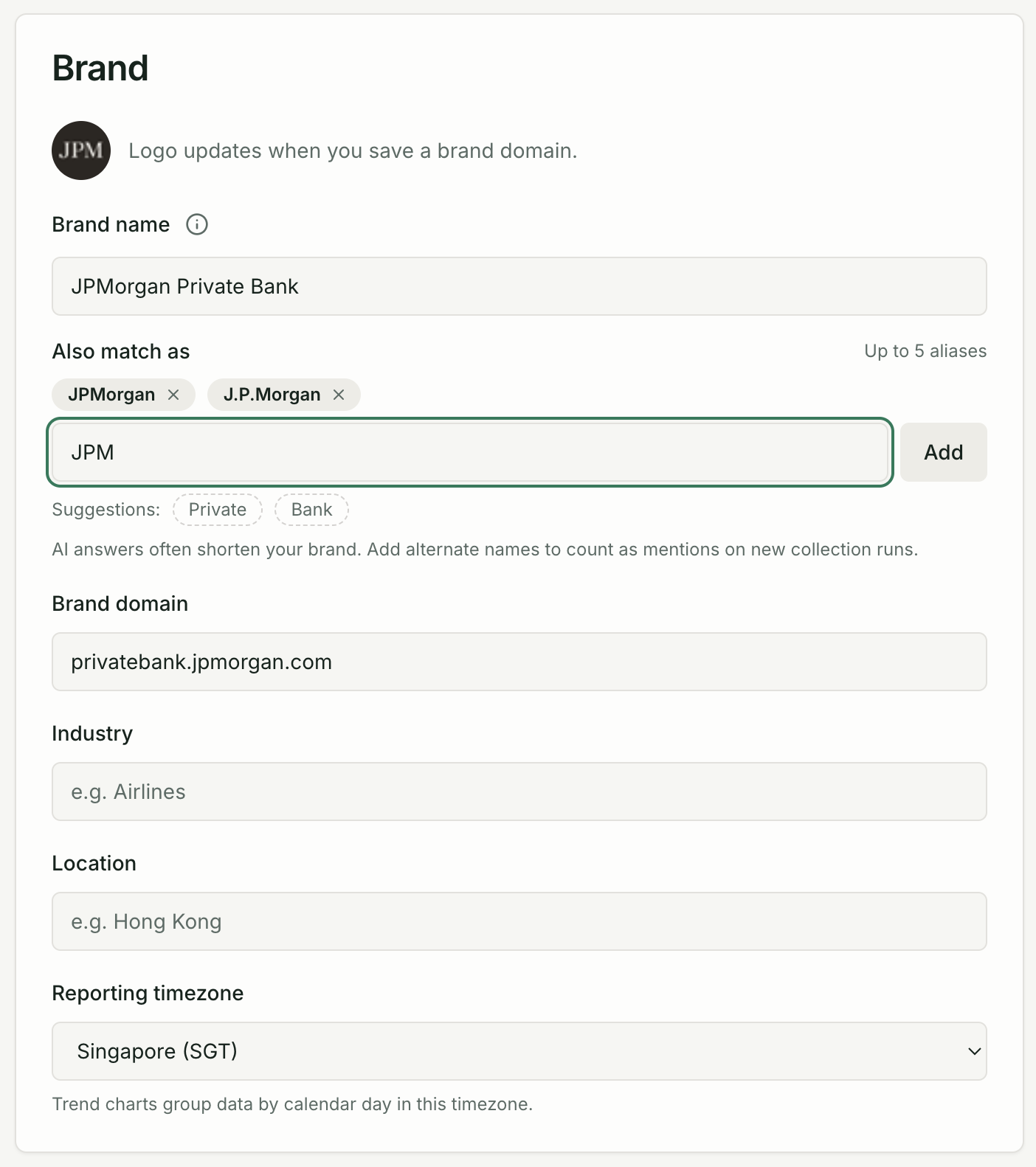
You can add up to 5 aliases per project. Each alias must be at least three characters and cannot duplicate your primary brand name or a competitor name.
Aliases apply on new collection runs after you save. Past check results are not recalculated. If you add aliases today, the next scheduled run (or Run now) will use them.
Activating and deactivating models
Section titled “Activating and deactivating models”In Brand Settings → Models, toggle each AI model on or off. Changes take effect on the next scheduled run.
Monitoring your tracking
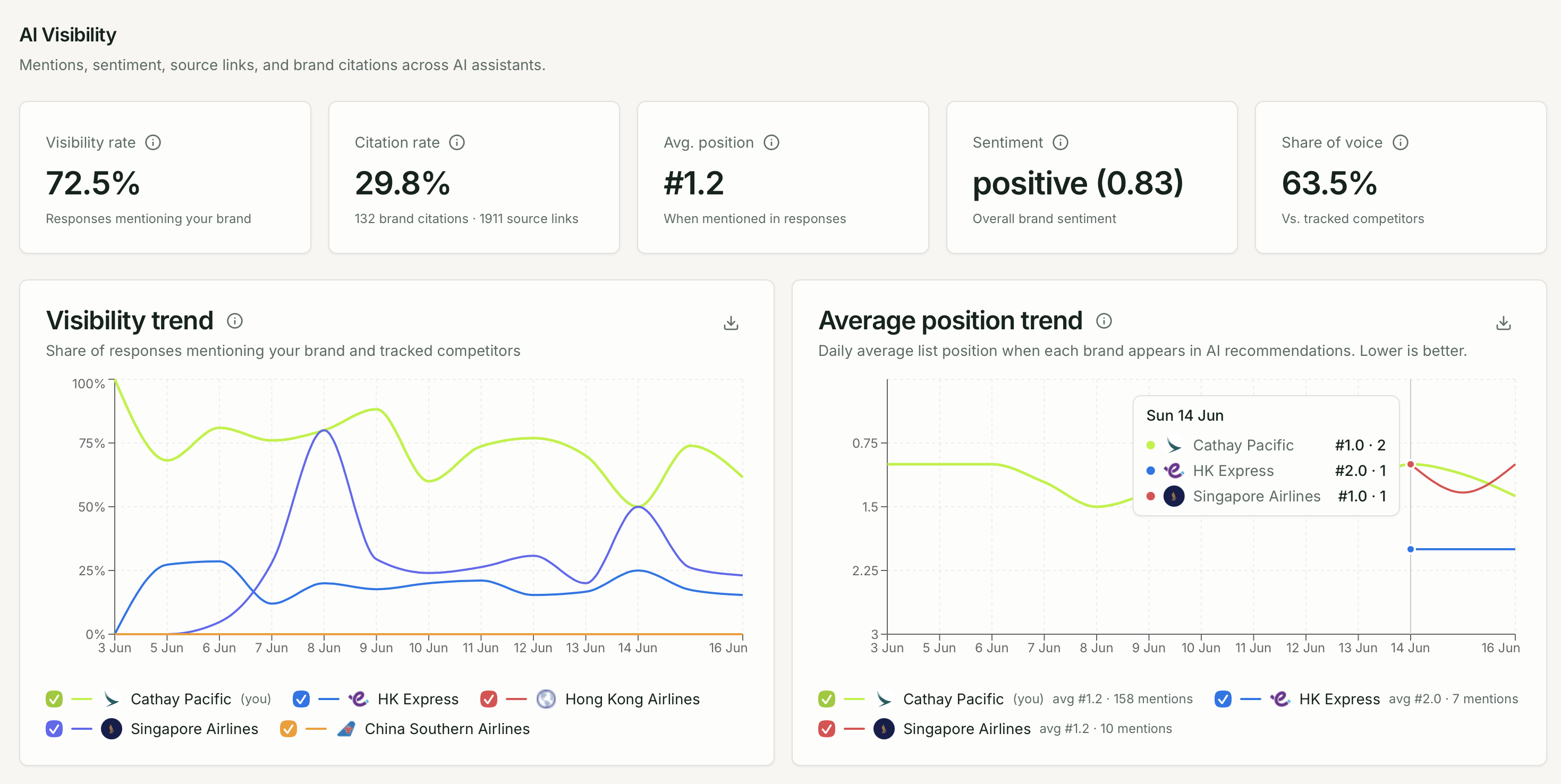
Section titled “Monitoring your tracking”The Overview dashboard shows:
- Visibility rate and share of voice over time per model
- Recent responses for manual review (via Responses)
- Citation count trends (via Sources)
- Competitor comparison charts
Understanding check consumption
Section titled “Understanding check consumption”Each prompt × model × run = one check. For example:
- 10 prompts × 3 models × weekly cadence ≈ 120–130 checks/month
Check your remaining allowance in Settings → Organization → Billing.