Account & Settings
Settings are split into Brand Settings (per project), Organization (account-wide, owners only), and Profile (personal).
Brand Settings
Section titled “Brand Settings”Located in the Brand Settings collapsible section in the left sidebar while a project is active.
| Page | Route | Description |
|---|---|---|
| Brand | /settings/brand | Brand name, domain, aliases, industry, location |
| Prompts | /settings/prompts | Bulk manage active prompts |
| Competitors | /settings/competitors | Add, edit, remove tracked competitors |
| Keywords | /settings/keywords | Bulk manage active keywords |
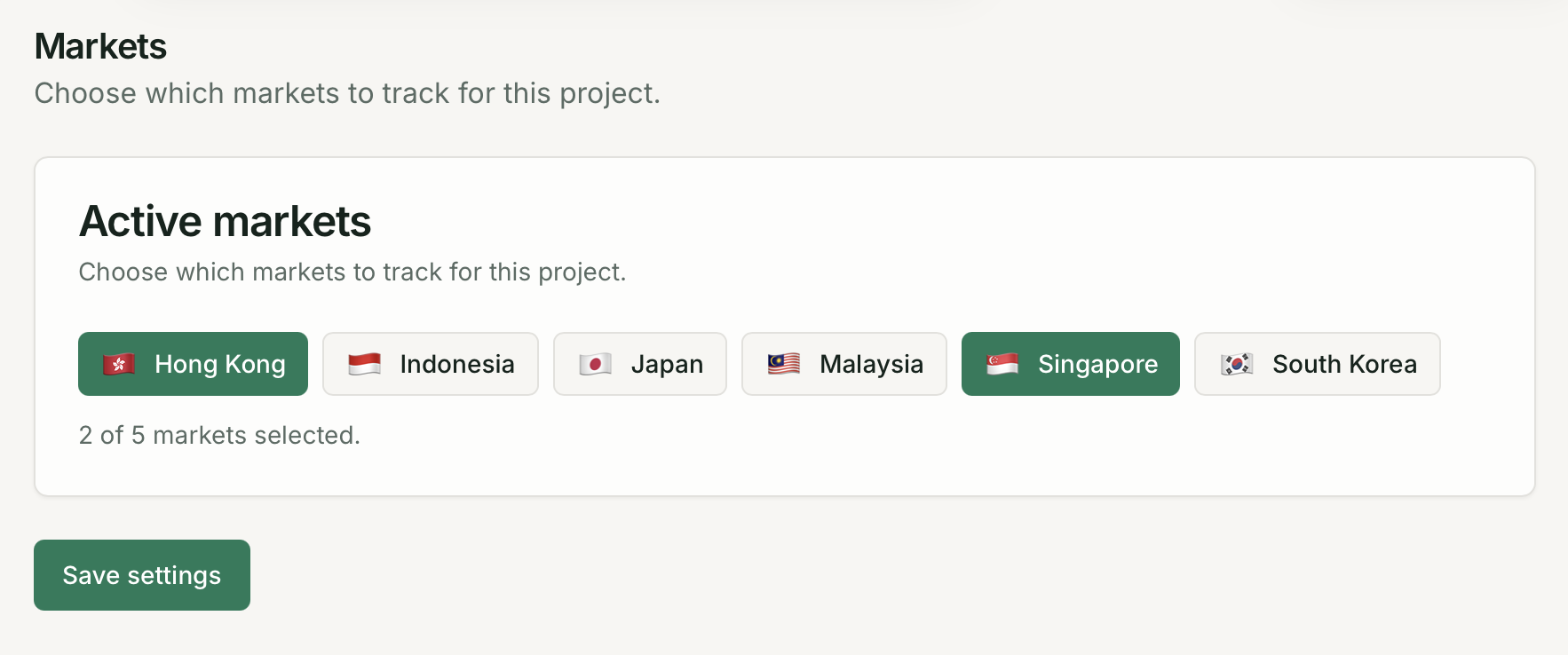
| Markets | /settings/markets | Enable/disable active markets (plan-limited) |
| Models | /settings/models | Toggle active AI platforms for this project |
| General | /settings/general | Timezone, alert thresholds, exports, API keys |
| Setting | Description |
|---|---|
| Brand name | The name Quratic looks for in AI responses |
| Brand aliases | Short names and abbreviations for mention detection |
| Brand domain | Your domain for citation detection (e.g. acme.com) |
| Industry | Your brand’s industry category |
| Location | Primary location for prompt suggestions |
Markets
Section titled “Markets”Active markets control which regions a project tracks. Your plan sets how many markets you can enable (see Plans & Limits).
- New projects default to Singapore (SG)
- Dashboard Markets filters only list active markets
- Cannot remove a market that still has prompts or keywords assigned
Models
Section titled “Models”Toggle which AI platforms are checked for this project. Available models depend on your plan — see Supported AI Models.
General
Section titled “General”| Setting | Description |
|---|---|
| Reporting timezone | Timezone for run timestamps in exports |
| Alert thresholds | Email alert when visibility drops below a set percentage |
| Exports | CSV and PDF export — see Exports |
| API keys | Generate and revoke API keys (Pro and above) |
Organization
Section titled “Organization”Located under Organization in the sidebar (owners only).
| Page | Route | Description |
|---|---|---|
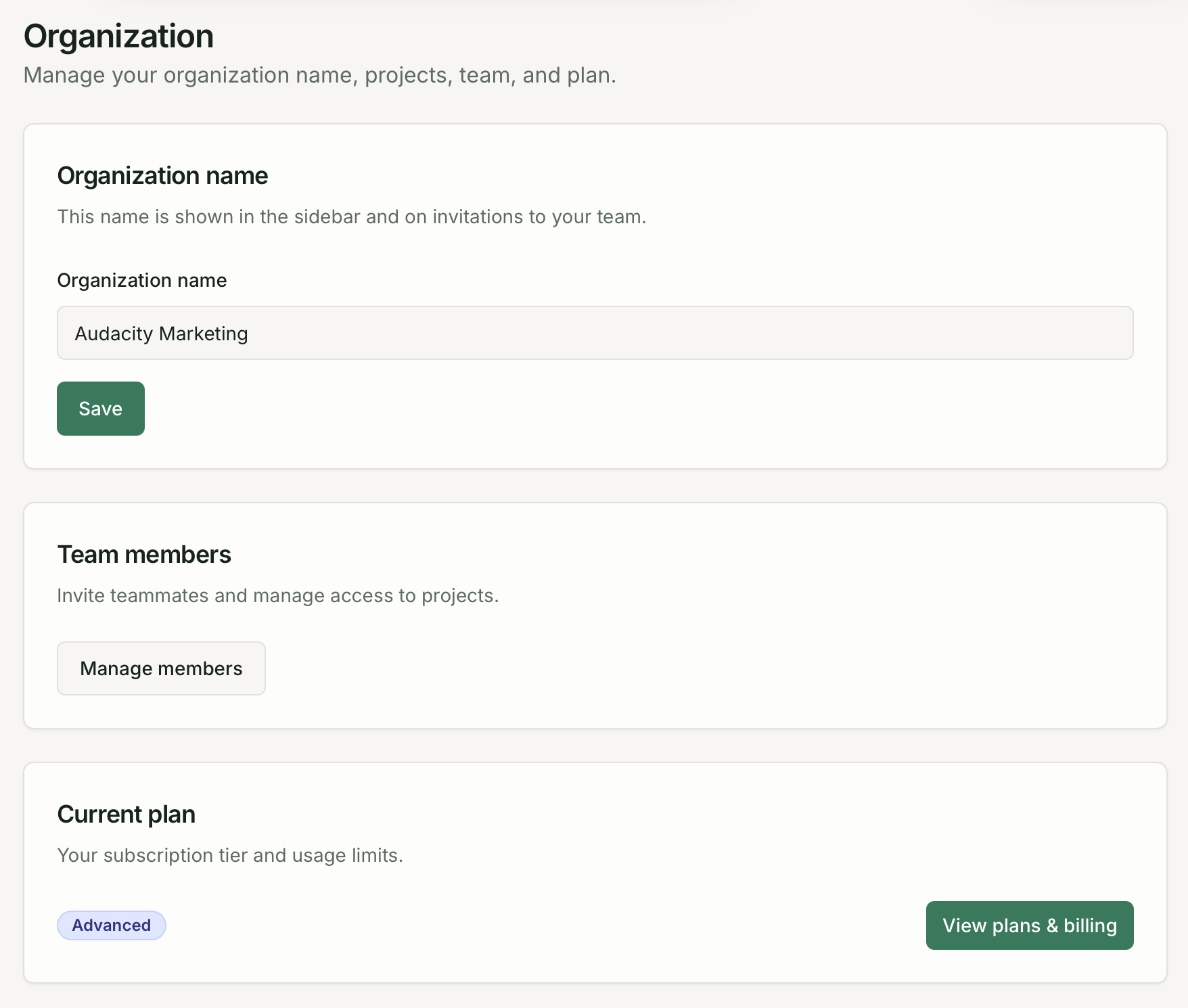
| Organization | /settings/organization | Organization name, projects list, team members link |
| Billing | /settings/organization/billing | Plan, payment, invoices via Paddle portal |
Billing actions
Section titled “Billing actions”| Action | Description |
|---|---|
| View current plan | Plan name, limits, renewal date |
| Upgrade / downgrade | Switch plans; upgrades immediate (prorated), downgrades next cycle |
| Manage billing | Paddle portal for payment methods and invoices |
Profile
Section titled “Profile”Located at Settings → Profile (user menu in sidebar footer).
| Setting | Description |
|---|---|
| Display name | Name shown to team members |
| Login email (read-only; contact support to change) | |
| Password | Change current password |
Team management
Section titled “Team management”Organization → Members (owners only). Members only access projects you explicitly grant them. See Team & Permissions.