Quick Start
This guide walks you from a new account to your first tracked prompt and keyword in under 5 minutes.
Prerequisites
Section titled “Prerequisites”- A Quratic account. Sign up at app.quratic.com/signup — the free trial includes one project, one market, and one AI model.
-
Set up your brand
After signing in, the Set up your brand dialog appears. A project represents one brand.
Step 1 — Brand: Enter:
- Brand name — the name you want to track (e.g.
Acme Corp) - Brand aliases — short names (e.g.
acme) used to detect mentions in AI responses - Brand domain — your website (e.g.
acme.com) — used to detect citations - Optional Industry and Location — improves prompt suggestions
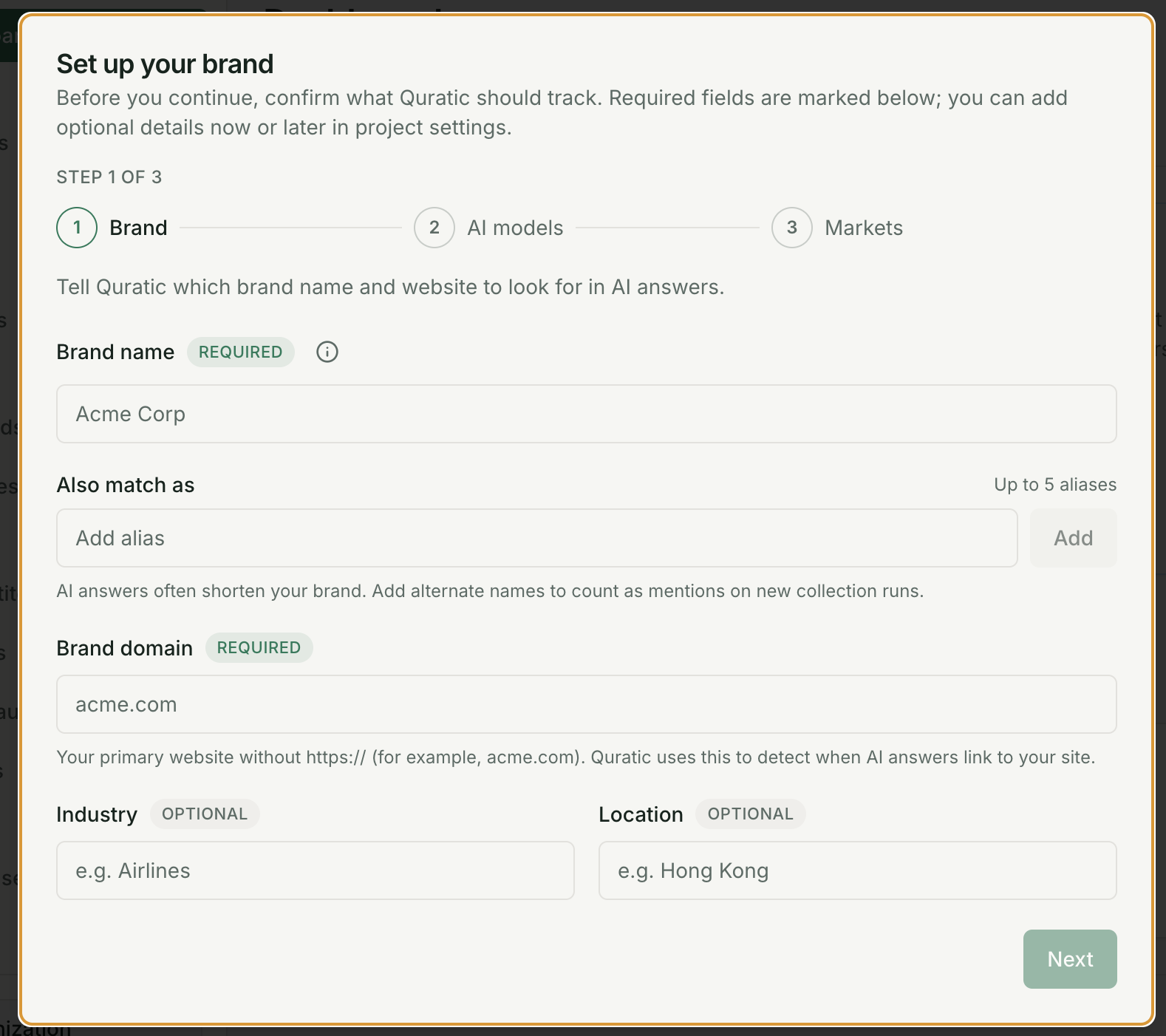
Brand setup with brand name and domain fields Step 2 — AI models: Select the AI platforms Quratic will query. Available models depend on your plan:
- Trial: ChatGPT, Perplexity
- Starter / Growth: ChatGPT, Perplexity, Google AI Mode, Google AI Overviews
- Pro: + Gemini, Microsoft Copilot
- Advanced & Agency: + Claude
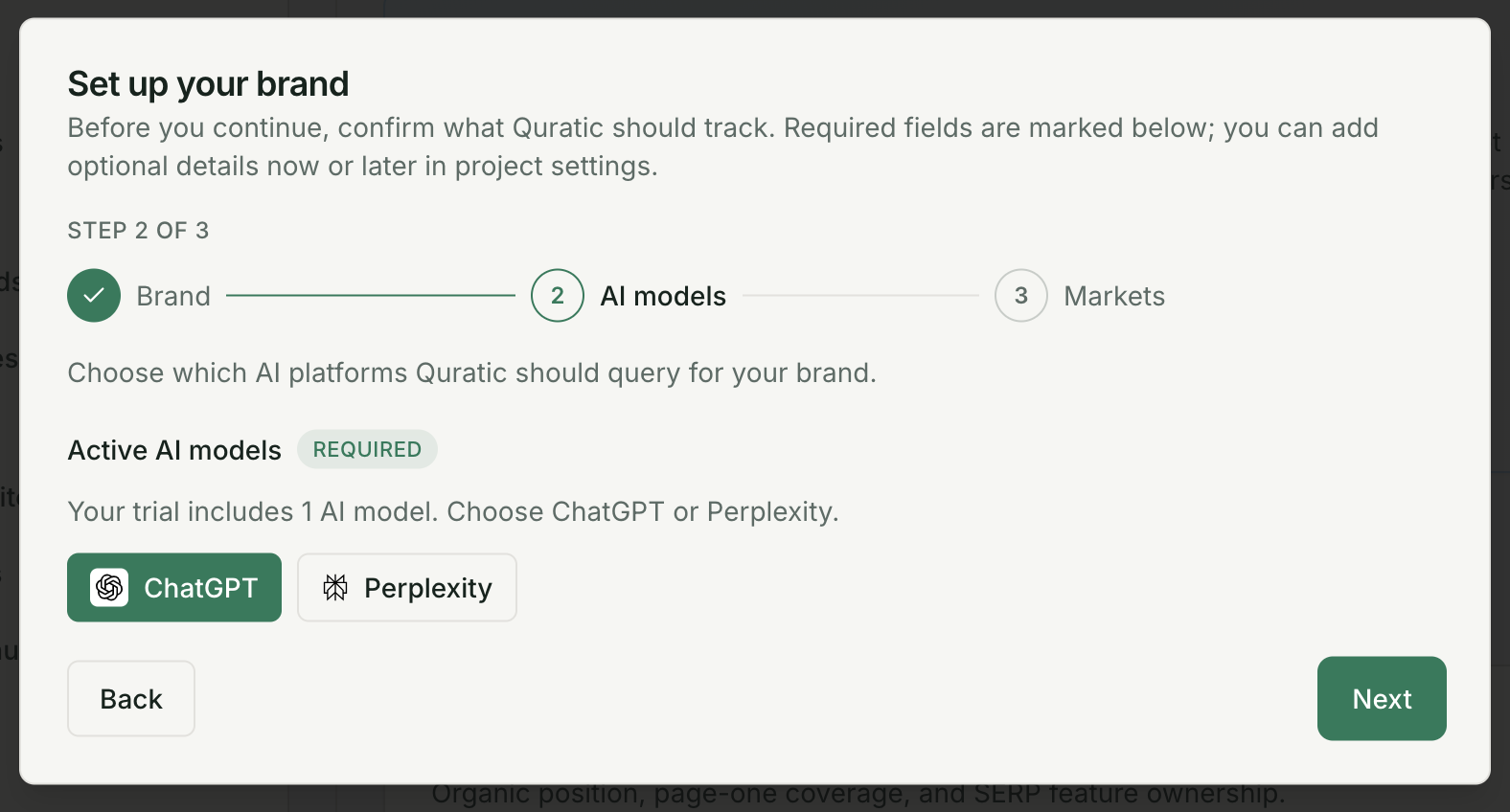
AI model selection during brand setup Step 3 — Markets: Select the country where checks run, then click Continue to Dashboard.
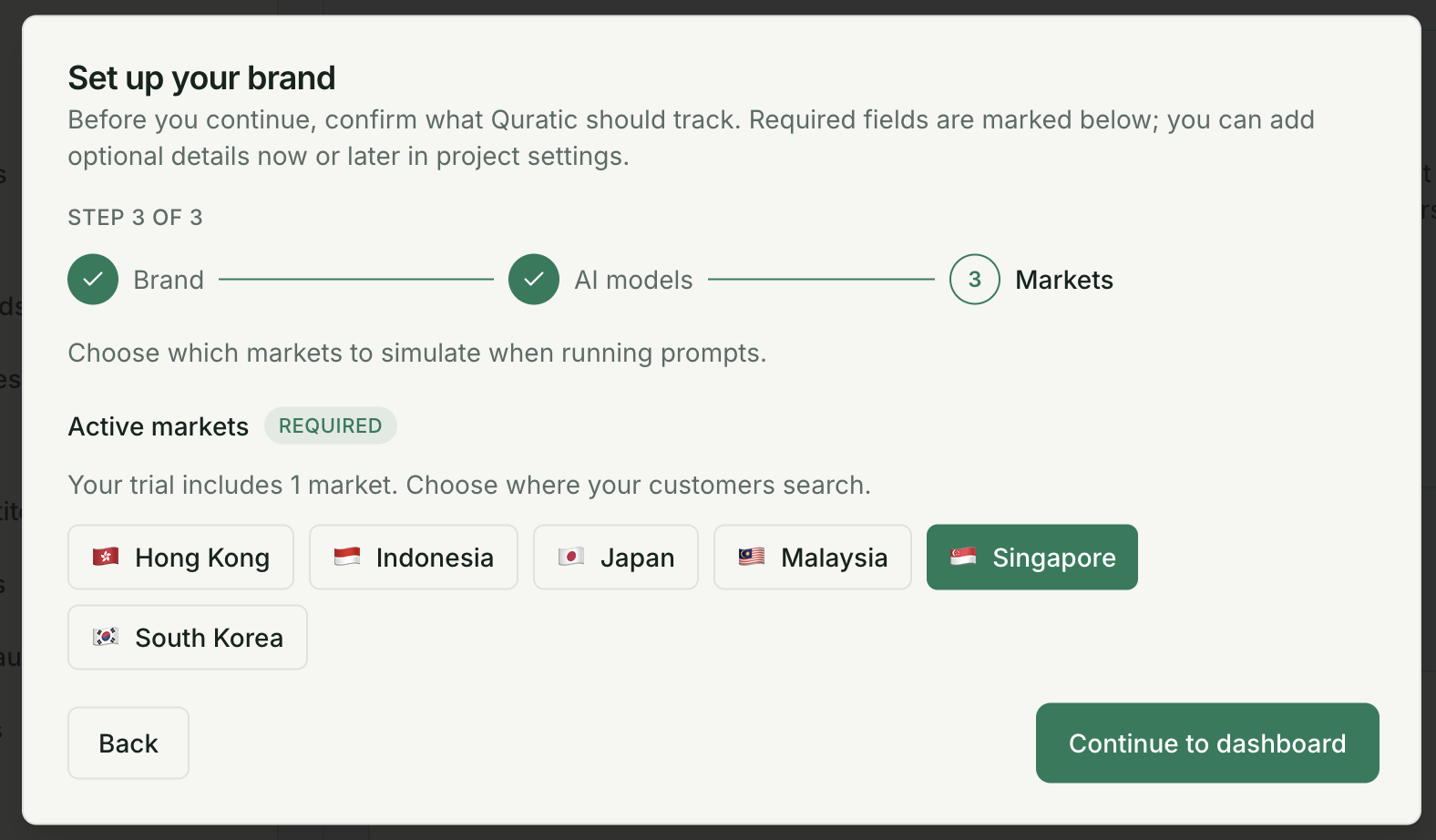
Market selection during brand setup - Brand name — the name you want to track (e.g.
-
Add your first prompt
A prompt is a question an AI user might ask. Go to Prompts → Add prompt (under AI Visibility in the sidebar).
Good examples:
- “What is the best CRM for small businesses in Singapore?”
- “おすすめのプロジェクト管理ツールは?”
- “Which accounting software is popular in Malaysia?”
Assign a market and category (e.g.
awareness,purchase-intent).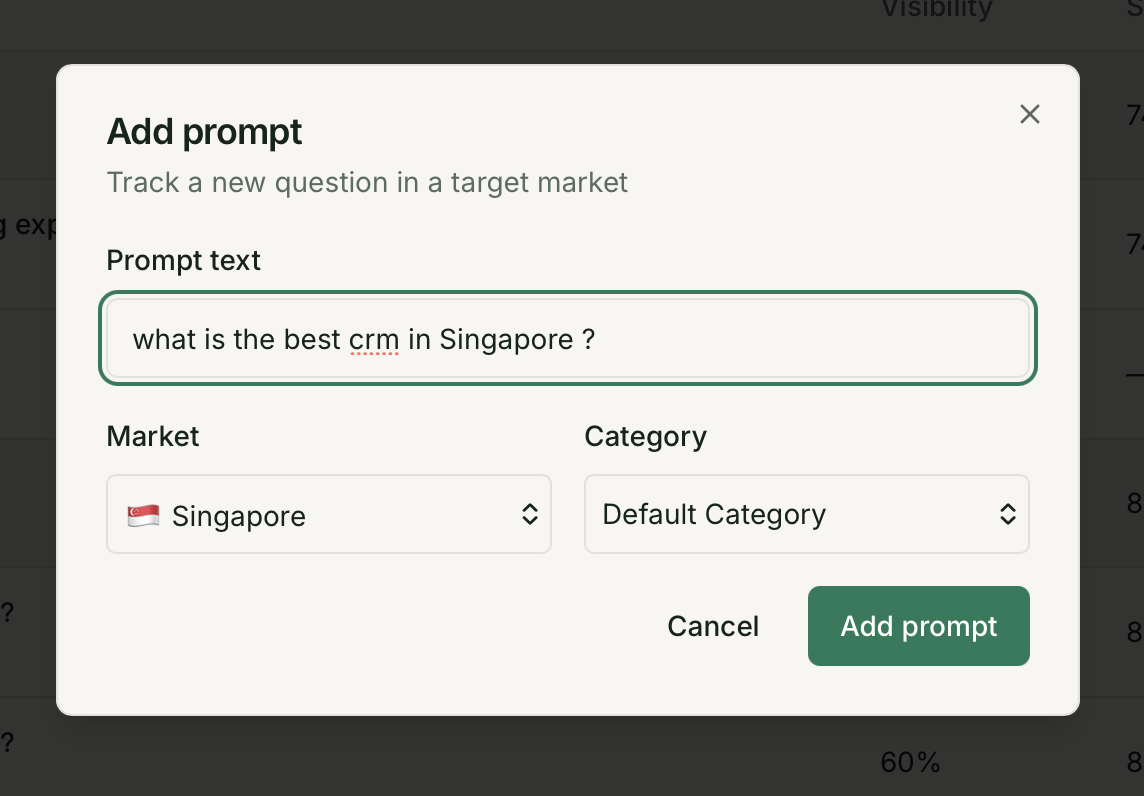
Add prompt dialog with text, market, and category fields -
Add your first keyword
A keyword is a search term tracked on Google. Go to Keywords → Add keyword (under Search in the sidebar).
Good examples:
- “Best CRM Singapore”
- “日本 ランニングシューズ”
- “Accounting software Malaysia”
Assign a market and device (Desktop, Mobile, or Both).
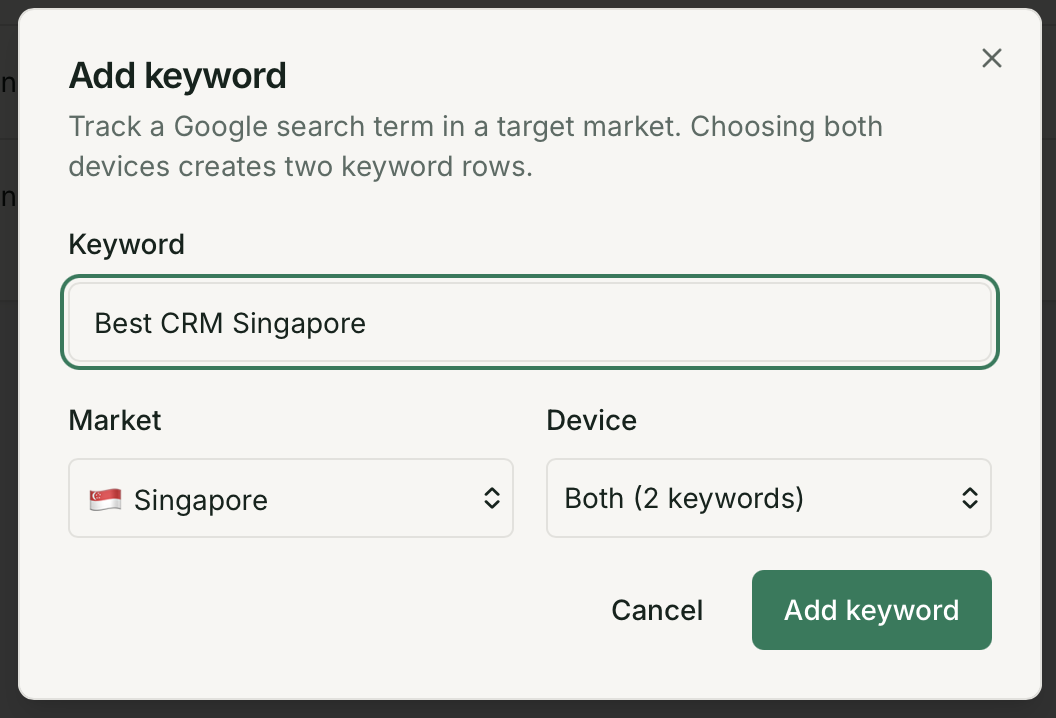
Add keyword dialog with text, market, and device fields -
Add competitors (optional but recommended)
Go to Competitors → Add competitor under AI Visibility. Enter competitor brand names — they are detected in the same checks at no extra cost.
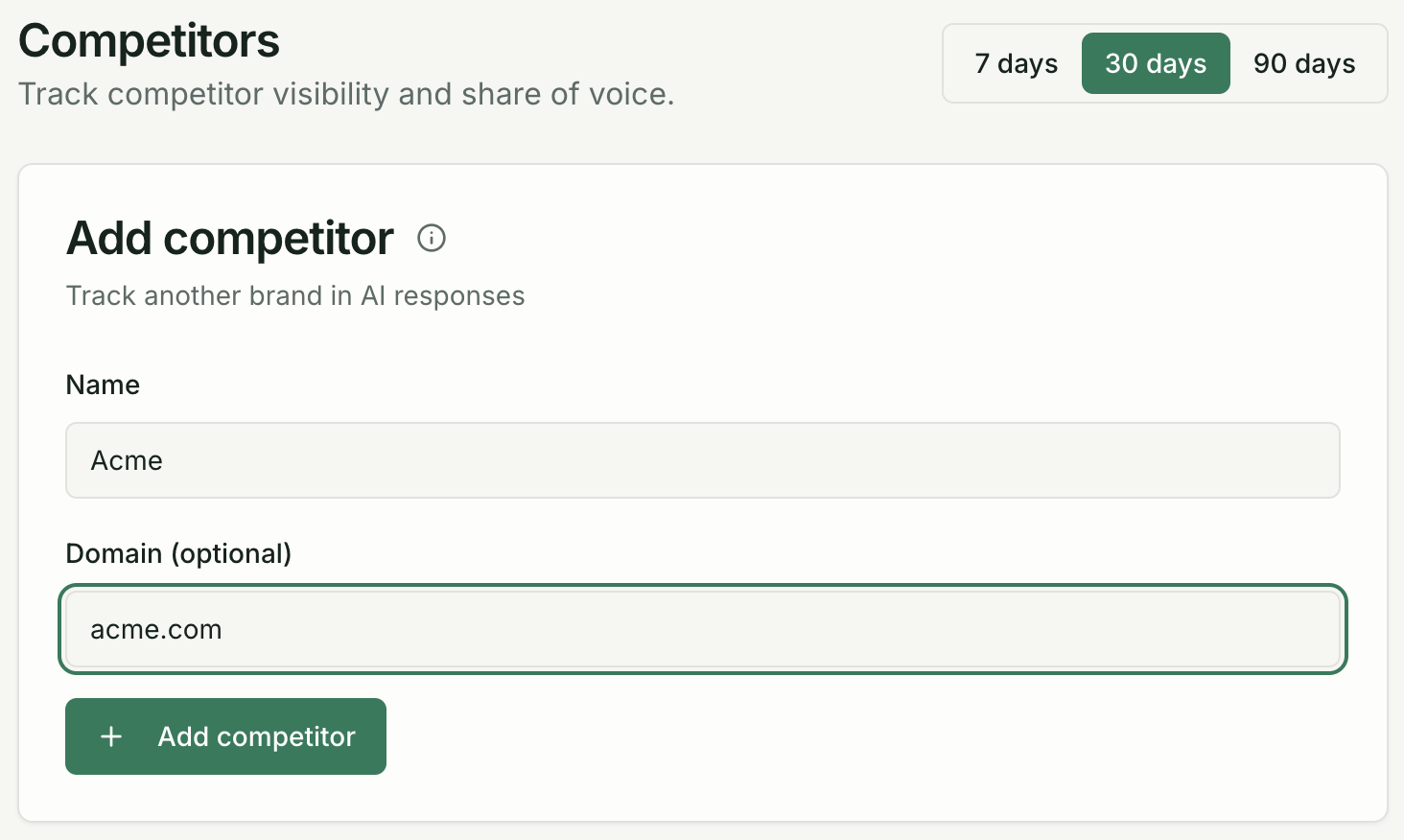
Add competitor dialog -
See your data
Checks run automatically on your plan’s cadence (weekly by default on Starter). Return to the Dashboard once the first check completes.
What’s next
Section titled “What’s next”- The Dashboard — understand Overview, AI Visibility, and Search tabs
- Write Effective Prompts — get the most signal from your prompts
- Prompts — full prompt management guide