Manage Multiple Clients
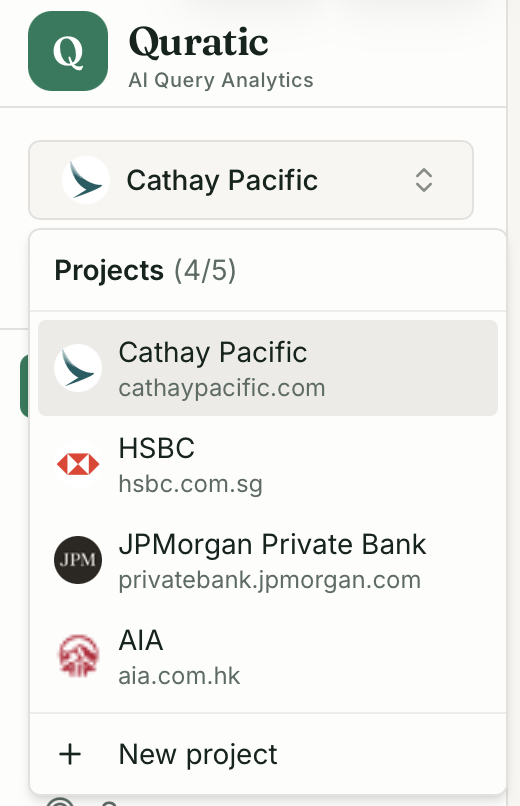
In Quratic, each client brand is a separate project. Your organization’s sidebar shows all projects you have access to. Switching projects is instant — all dashboard data, prompts, competitors, and settings update for the selected client.
Switching between clients
Section titled “Switching between clients”Use the project switcher at the top of the sidebar. Click the currently selected project name to open the dropdown, which lists all your client projects with their brand logos.
Per-client data isolation
Section titled “Per-client data isolation”Everything in Quratic is scoped to the active project:
| Feature | Per client? |
|---|---|
| Prompts | ✓ Separate |
| Competitors | ✓ Separate |
| Dashboard metrics | ✓ Separate |
| AI model settings | ✓ Separate |
| Exports (CSV/PDF) | ✓ Separate |
| Citations & Sources | ✓ Separate |
| API keys | ✓ Separate |
Switching projects never mixes data between clients.
Monitoring all clients
Section titled “Monitoring all clients”Because each client’s data is isolated, you need to check each project individually. Workflow tips for agencies:
- Weekly review routine — switch to each client project, check the Overview dashboard, and note any significant SoV changes
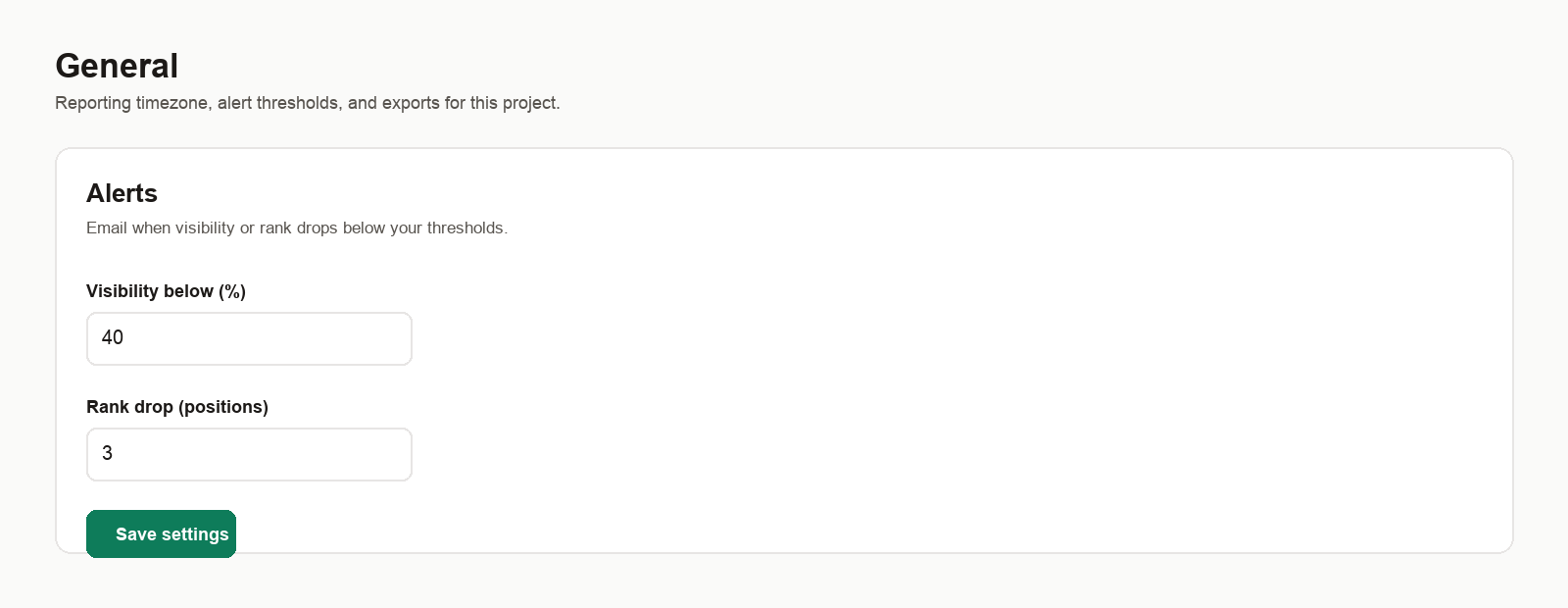
- Alert thresholds — set a visibility alert in Project settings for each client so you receive an email if their visibility drops below a defined threshold
- Export cadence — set a regular export schedule (CSV or PDF) for clients who want weekly or monthly reports
Adding a new client project
Section titled “Adding a new client project”- Go to Settings → Organization
- Click New project
- Fill in the client’s brand name, domain, industry, and location
- Complete the configuration (see Onboard a Client)
Your plan allows up to 5 or 10 client projects depending on your tier. View your project usage in Settings → Organization.
Deleting a client project
Section titled “Deleting a client project”Deleting a project permanently removes all of its prompts, check history, and settings. This cannot be undone. If a client relationship ends but you may need the historical data, consider deactivating all prompts instead of deleting the project — inactive projects do not consume checks.
Contact support to delete a project.