Team & Project Permissions
For agencies, controlling who can see which client data is critical. Quratic’s per-project permissions let you assign each team member (and optionally each client) exactly the access they need.
| Role | Capabilities |
|---|---|
| Owner | Full access to all projects, billing, team management, and organization settings. Not visible to other members or clients. |
| Member | Access only to projects the owner explicitly grants. Permissions per project are configurable. |
Inviting a team member
Section titled “Inviting a team member”- Go to Settings → Organization → Members
- Enter their work email in the Invite a member field
- Confirm seat availability (shown next to the field)
- Click Send invite
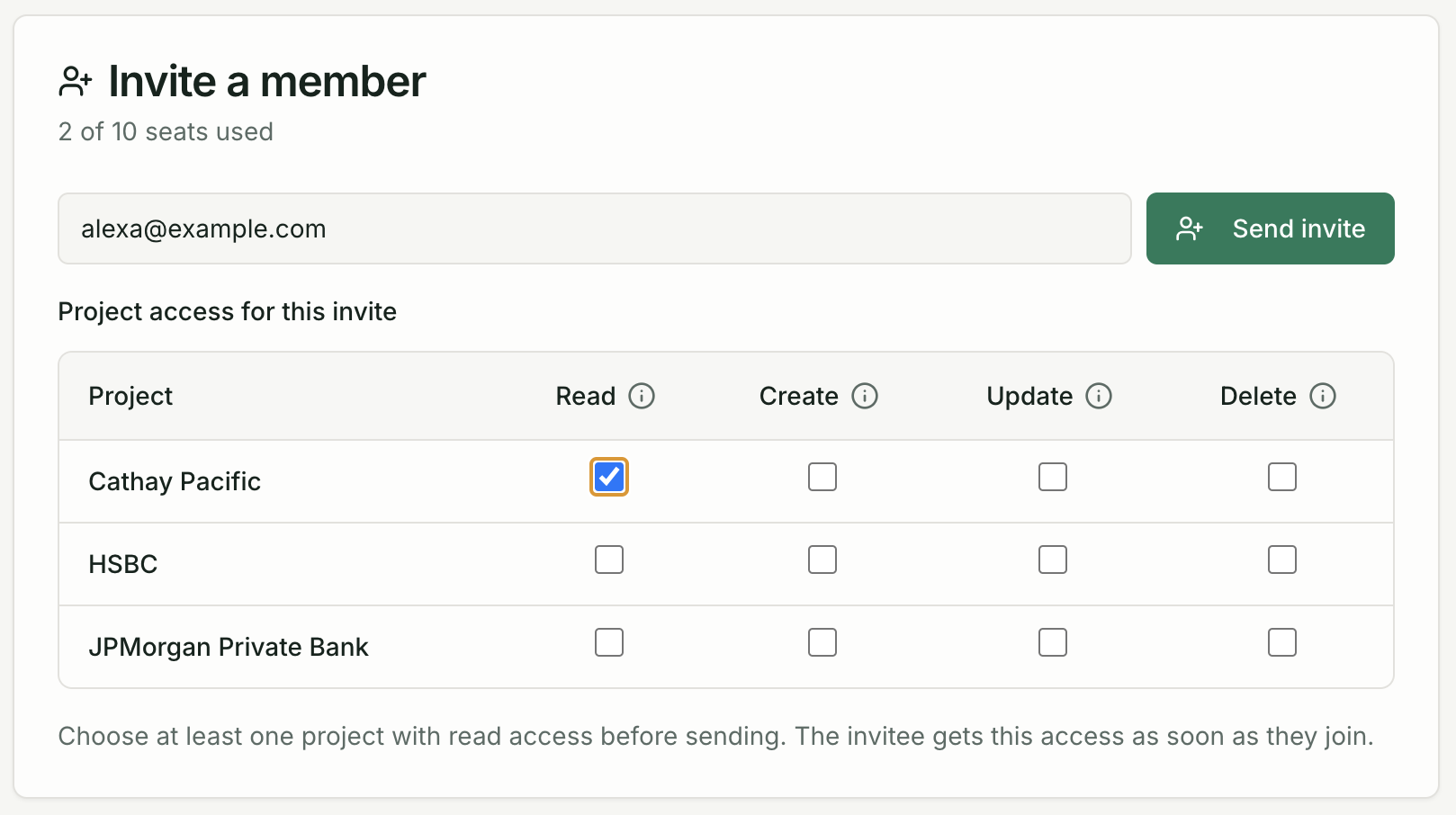
New members have no project access until you explicitly grant it. They will see a “No project access” screen when they log in.
Assigning project permissions
Section titled “Assigning project permissions”After inviting a team member:
- On the Members page, expand their row
- For each client project, tick the permissions you want:
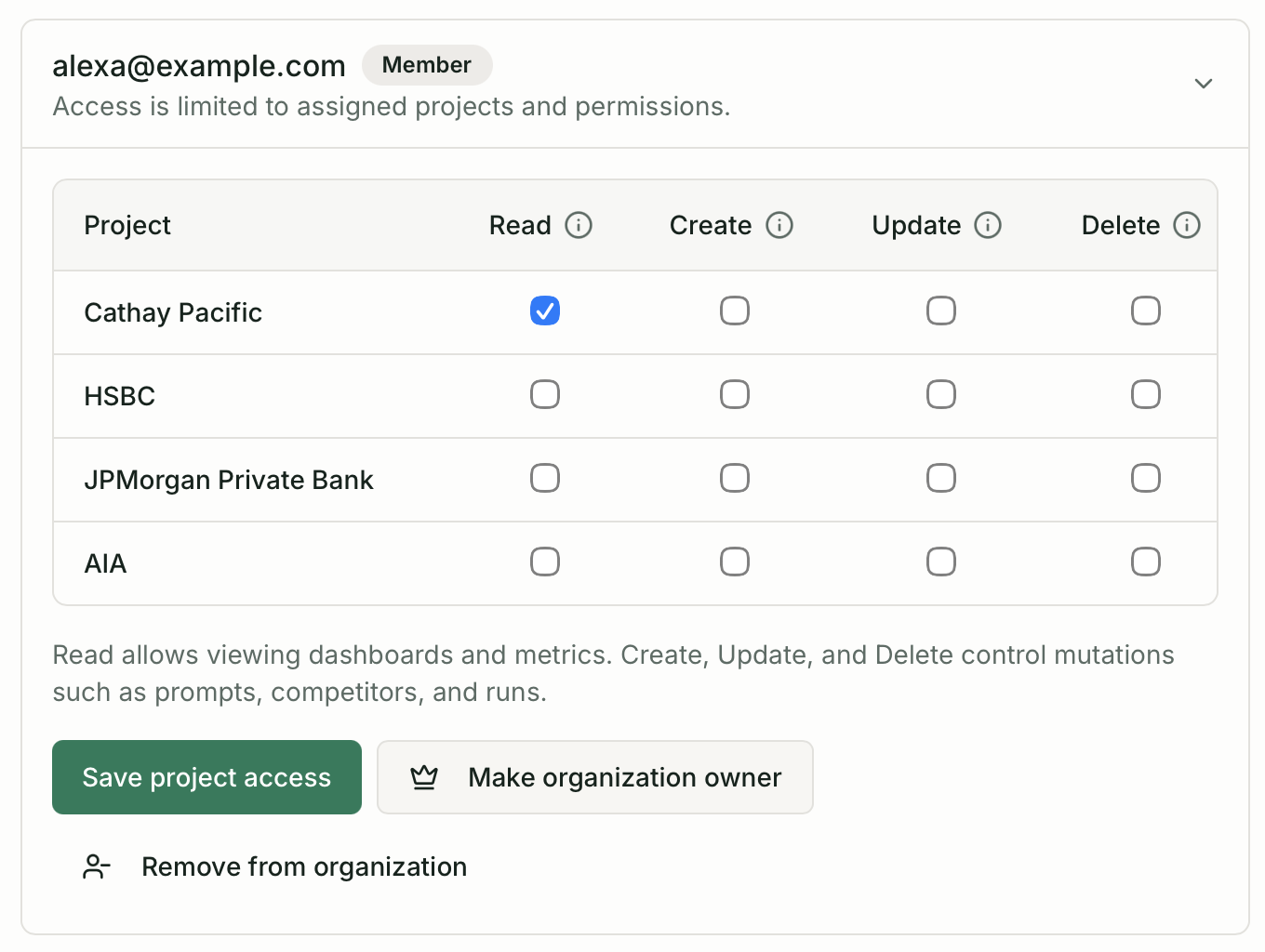
| Permission | What the member can do |
|---|---|
| Read | View dashboards, reports, prompts, competitors, sources |
| Create | Add prompts, competitors, categories |
| Update | Edit prompt settings, project settings, competitor details |
| Delete | Remove prompts, competitors, or categories |
- Click Save project access
Typical permission profiles for agency roles
Section titled “Typical permission profiles for agency roles”| Role | Recommended permissions |
|---|---|
| Account manager (view only) | Read on assigned client projects |
| Strategist | Read + Create + Update on assigned projects |
| Agency admin | All permissions on all projects (or promote to Owner) |
| Client login | Read only on their own project |
Setting up client logins
Section titled “Setting up client logins”If your clients want direct access to their own Quratic dashboards:
- Invite the client contact with their work email
- Assign Read access to their project only
- They log in and see only their brand’s data in the project switcher
Changing and removing members
Section titled “Changing and removing members”- Promote to owner — grants full organization access (use only for senior agency staff)
- Remove from organization — immediate removal; they lose all project access instantly
Seat limits by plan
Section titled “Seat limits by plan”| Agency plan | Seats |
|---|---|
| Agency Starter | 15 |
| Agency Growth | 20 |
| Agency Pro | 30 |
View current usage in Settings → Organization → Members (seat counter next to the invite field).