Team & Permissions
Quratic supports multiple seats per organization so your whole team can access dashboards and reports. Team management is available to organization owners only.
| Role | What they can do |
|---|---|
| Owner | Full access to all projects, billing, team management, and organization settings. |
| Member | Access only to projects explicitly granted by an owner. Permissions per project are configurable (read, create, update, delete). |
Inviting a team member
Section titled “Inviting a team member”- Go to Organization → Team Members and click on Manage Members
- Enter their work email address in the Invite a member field and assign at-least one read permission
- Check the seat usage indicator to confirm you have capacity
- Click Send invite
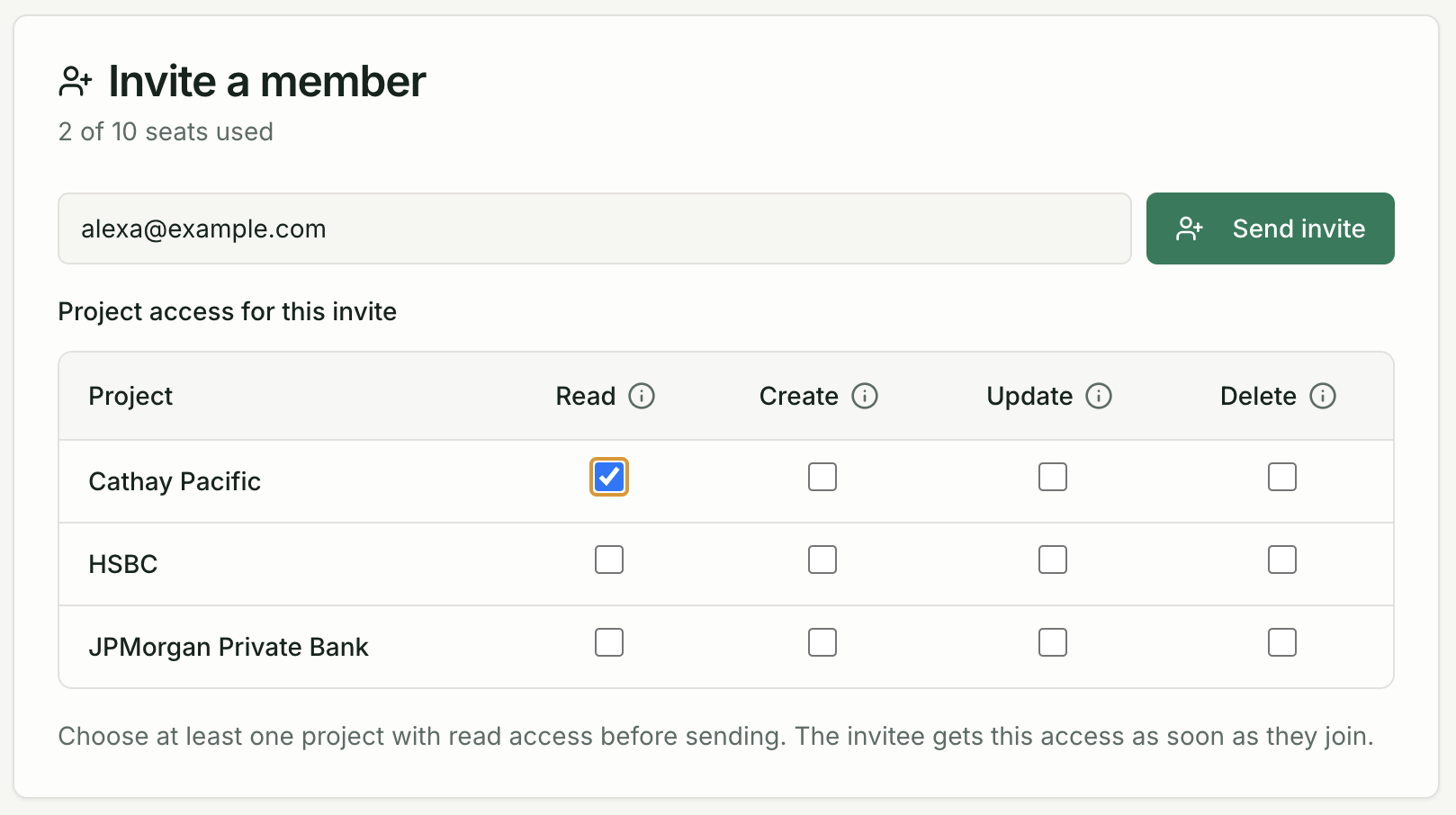
If the invitee already has a Quratic account, they are added immediately. Otherwise, they receive an invitation email and can create an account to join your organization.
Per-project permissions
Section titled “Per-project permissions”Members do not automatically have access to every project in your organization. After inviting someone, set their project permissions:
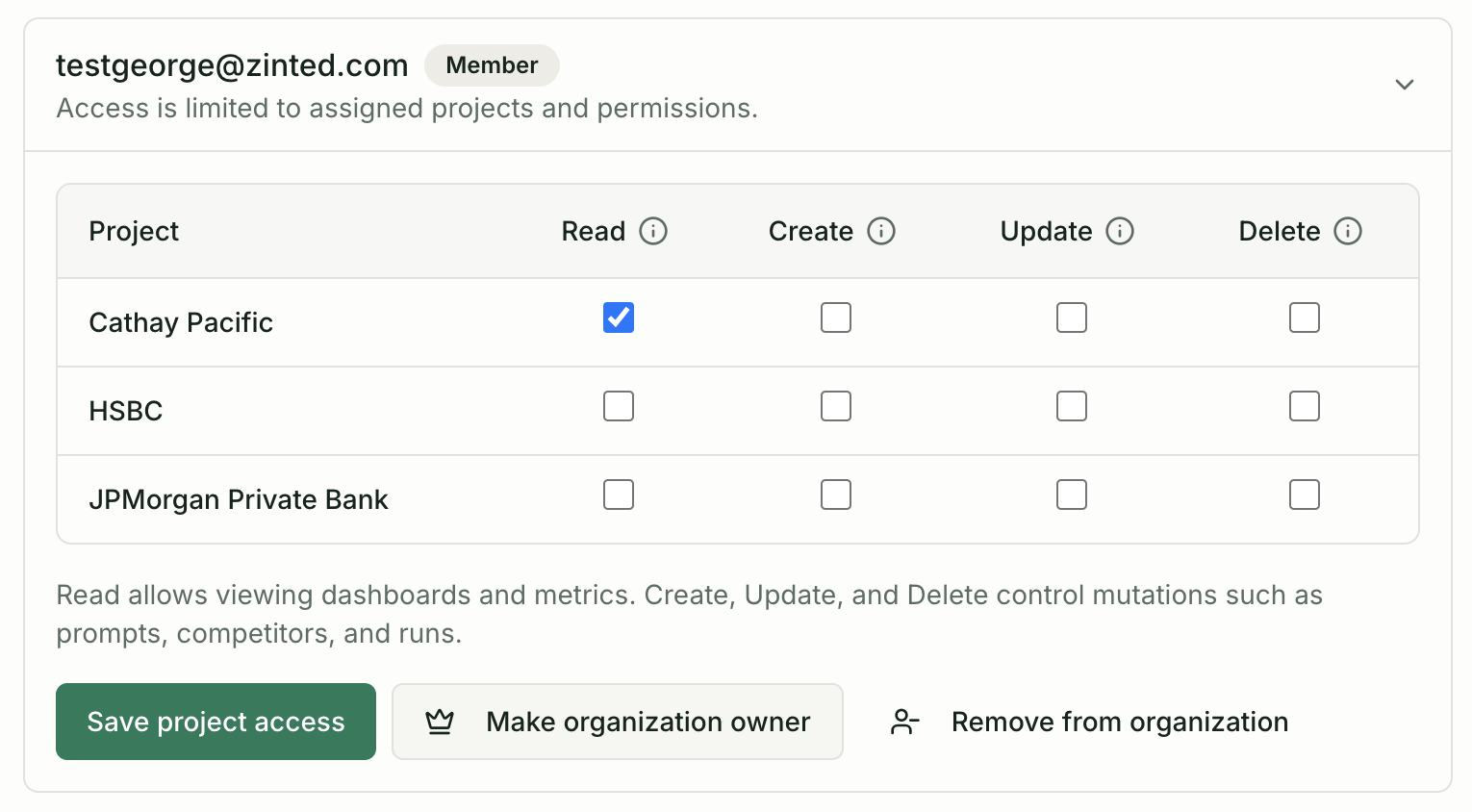
- On the Members page, expand the member’s row
- For each project, check the permissions you want to grant:
- Read — view dashboards and reports
- Create — add prompts, competitors, categories
- Update — edit prompts, Brand Settings
- Delete — remove prompts, competitors, or data
- Click Save project access
Managing members
Section titled “Managing members”Promote to owner
Section titled “Promote to owner”On the member’s expanded row, click Make organization owner. Owners bypass all per-project permission checks and have full access to billing and team settings. Only use this for trusted administrators.
Remove a member
Section titled “Remove a member”On the member’s expanded row, click Remove from organization. They immediately lose access to all projects. Owners can only remove members, not other owners.
Seat limits by plan
Section titled “Seat limits by plan”| Plan | Seats included |
|---|---|
| Trial | 1 |
| Starter | 2 |
| Growth | 5 |
| Pro | 10 |
| Advanced | 10 |
| Agency Starter | 15 |
| Agency Growth | 20 |
| Agency Pro | 30 |
If you need more seats, upgrade your plan at Settings → Organization → Billing.